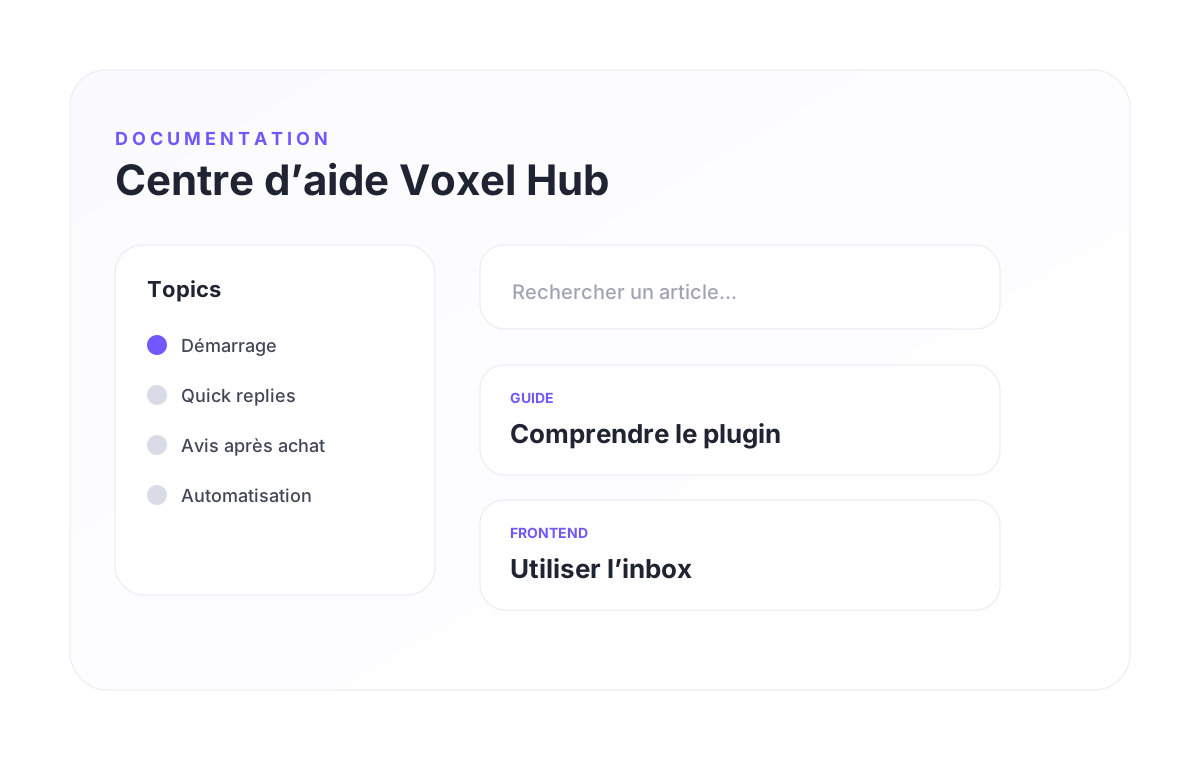
Voxel Hub documentation for administrators and users
A complete help center to understand setup, admin settings, frontend usage, quick replies, post-purchase reviews, automation and practical use cases.
Try a broader search or reset the filters.
What Voxel Hub does
Voxel Hub extends the native Voxel messaging experience with practical CRM features designed for marketplaces, service directories, product platforms and digital product stores.
The plugin helps site owners keep customer communication inside the inbox instead of spreading follow-ups across email, external CRMs or manual notes. Sellers can reply faster, buyers get a clearer post-purchase experience, and administrators can define a more professional conversation workflow.
Main outcomes
- Faster replies through reusable quick reply templates.
- Cleaner post-purchase review requests inside the conversation.
- Better tracking with labels, priorities and conversation statuses.
- Automated follow-up logic after review requests or published reviews.
- A more polished inbox experience for buyers and sellers.
Who should use it?
- Marketplace owners who want to improve trust and customer satisfaction.
- Directory owners who want vendors to manage leads efficiently.
- Digital product sellers who want more reviews after purchase.
- Service platforms where vendors need fast replies and structured follow-up.
Installation and first setup
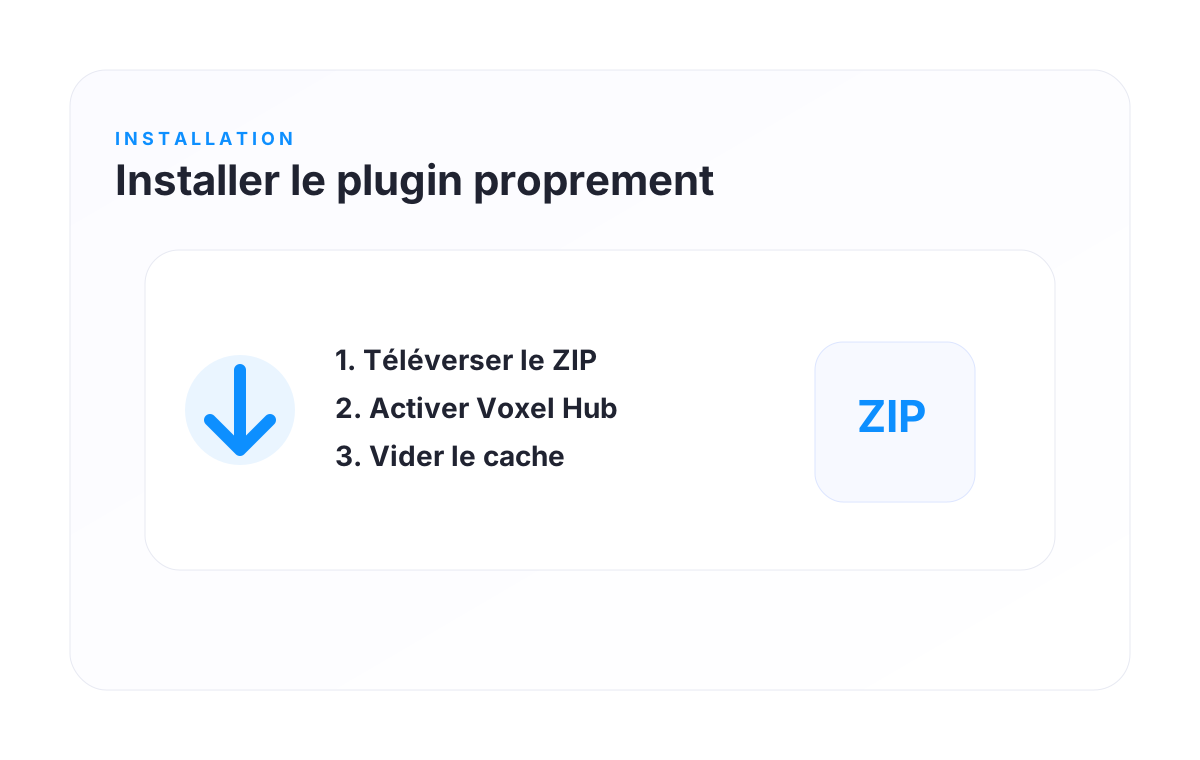
Voxel Hub is installed like a standard WordPress plugin. Before installing it on a live site, it is strongly recommended to test it on a staging environment, especially if your marketplace already has active conversations and orders.
Installation steps
- Go to WordPress Admin → Plugins → Add New.
- Click Upload Plugin.
- Select the Voxel Hub ZIP file.
- Click Install Now.
- Activate the plugin.
Recommended after activation
- Check that the Voxel theme is active.
- Open the Voxel Hub admin page.
- Configure quick replies first.
- Configure the review workflow only after testing your order flow.
- Clear any cache plugin or server cache.
Understanding the admin dashboard
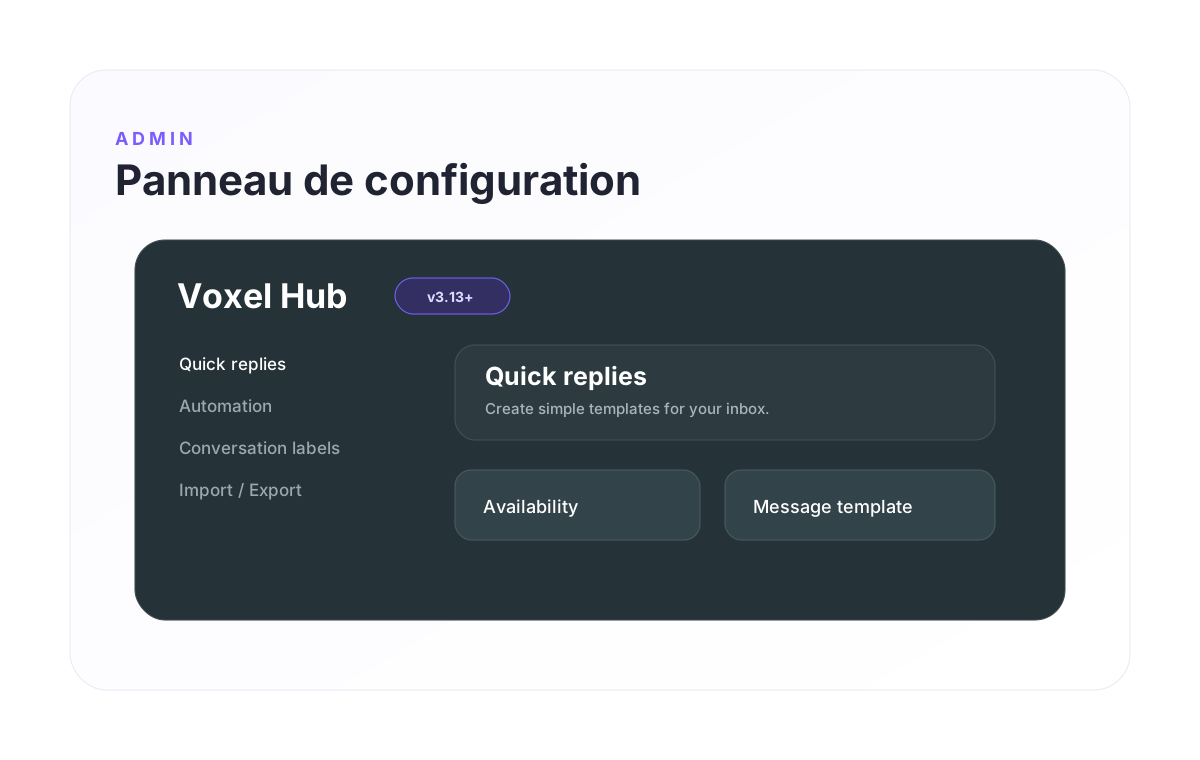
The Voxel Hub admin dashboard is where the site owner configures the behavior of the enhanced inbox. Each tab controls a specific part of the messaging and CRM experience.
Key sections
- Account: plugin information, version and license status.
- Addons: available modules and feature groups.
- Conversations: general inbox behavior.
- Quick replies: reusable reply templates for sellers.
- Automation: review workflow and conversation actions.
- Conversation labels: statuses, priorities and labels.
- Online users: presence indicators inside the inbox.
- Group conversations: group-based conversation features.
- Import / Export: backup or transfer your settings.
- Beta feedback: collect reports from testers or early users.
Recommended setup order
- Enable the conversation tools you need.
- Create 3 to 5 useful quick replies.
- Set up review request behavior.
- Configure labels and automation rules.
- Test as a buyer and as a seller.
Creating quick replies
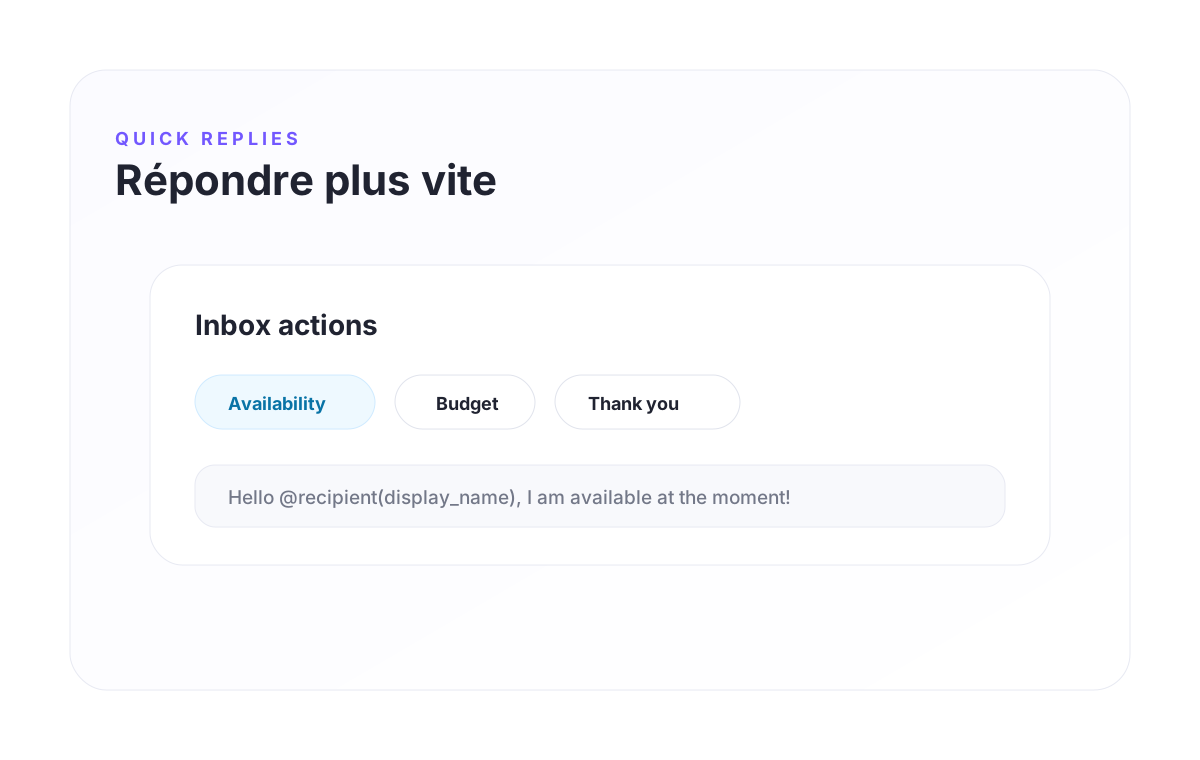
Quick replies are predefined messages available directly inside the frontend inbox. They are designed to save time on repeated answers while keeping the conversation natural and personalized.
How to create a quick reply
- Go to Voxel Hub → Quick replies.
- Click Add reply.
- Enter a short Label. This is what the seller sees as a button.
- Enter the full Message. This is the message inserted or sent in the conversation.
- Save changes.
Examples
Best practices
- Keep labels short and action-oriented.
- Avoid making every quick reply too generic.
- Use dynamic data when possible.
- Limit visible quick replies on mobile.
Quick reply use cases
Quick replies are most effective when they match the recurring questions sellers receive. The goal is not to automate every conversation, but to remove friction from repetitive replies.
Marketplace product seller
- Confirm product availability.
- Send delivery or pickup information.
- Thank the customer after purchase.
- Ask for missing details before confirming an order.
Service provider
- Ask for the desired date.
- Ask for the customer’s budget.
- Confirm the service area.
- Request more details before quoting.
Rental marketplace
- Confirm item availability for a specific date.
- Ask for pickup and return times.
- Share conditions or deposit information.
- Confirm the booking request has been received.
Using dynamic data in messages
Dynamic data allows a quick reply to adapt automatically to the conversation. This makes templates feel more personal and reduces manual editing.
Common example
This can display the recipient’s name in the final message.
Example message
When used correctly, dynamic data makes the seller look more responsive without sounding robotic.
Good usage rules
- Do not overload a message with too many variables.
- Always test dynamic content in a real conversation.
- Keep a fallback-friendly wording in case a field is empty.
The enhanced inbox experience
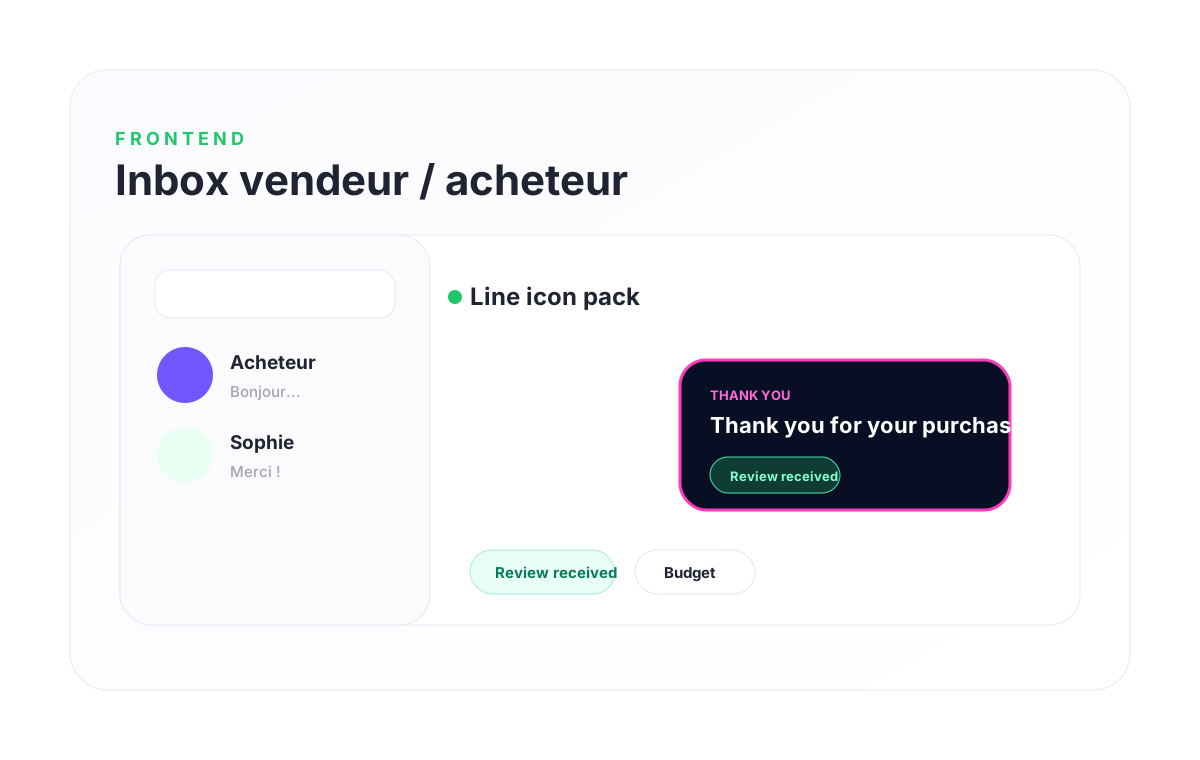
Voxel Hub improves the frontend inbox by adding productivity and follow-up tools directly inside the conversation. This keeps the user experience focused and avoids sending users to separate dashboards for simple actions.
Seller experience
- View customer conversations.
- Use quick replies.
- Send manual review requests when eligible.
- See conversation statuses and review badges.
- Track whether feedback was requested or published.
Buyer experience
- Ask questions before purchase.
- Receive clear follow-up messages after purchase.
- Leave a review from the conversation.
- Edit a published review when allowed.
Why it matters
For marketplaces, trust is built through fast answers, visible follow-up and reviews. Voxel Hub gives buyers and sellers a more structured communication flow without making the interface feel heavy.
Post-purchase review workflow
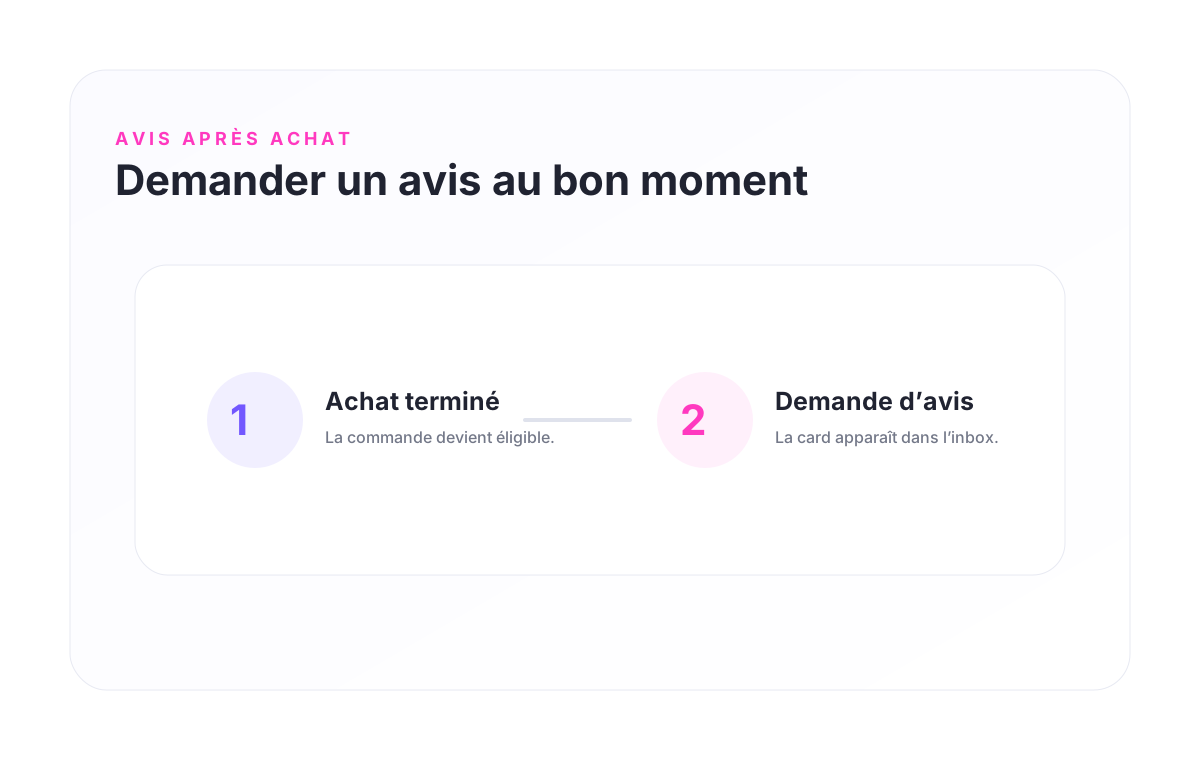
The review workflow helps sellers collect feedback after a buyer completes a purchase. Instead of sending a plain text message, Voxel Hub can display a polished review card directly in the conversation.
Workflow steps
- The buyer completes a purchase.
- The order becomes eligible for a review request.
- Voxel Hub displays or sends a review request card.
- The buyer leaves a rating and comment.
- The conversation updates to show the published review summary.
Important settings
- Automatic review requests: sends requests without seller action.
- Delay after completion: waits before asking for feedback.
- Manual review requests: lets sellers ask at the right moment.
- Published review summary: shows the rating and comment in the conversation.
- Instant refresh: updates the conversation after review actions.
Recommended delay
For digital products, an immediate or short delay can work well. For physical products or services, 24 to 72 hours may feel more natural.
Review request card
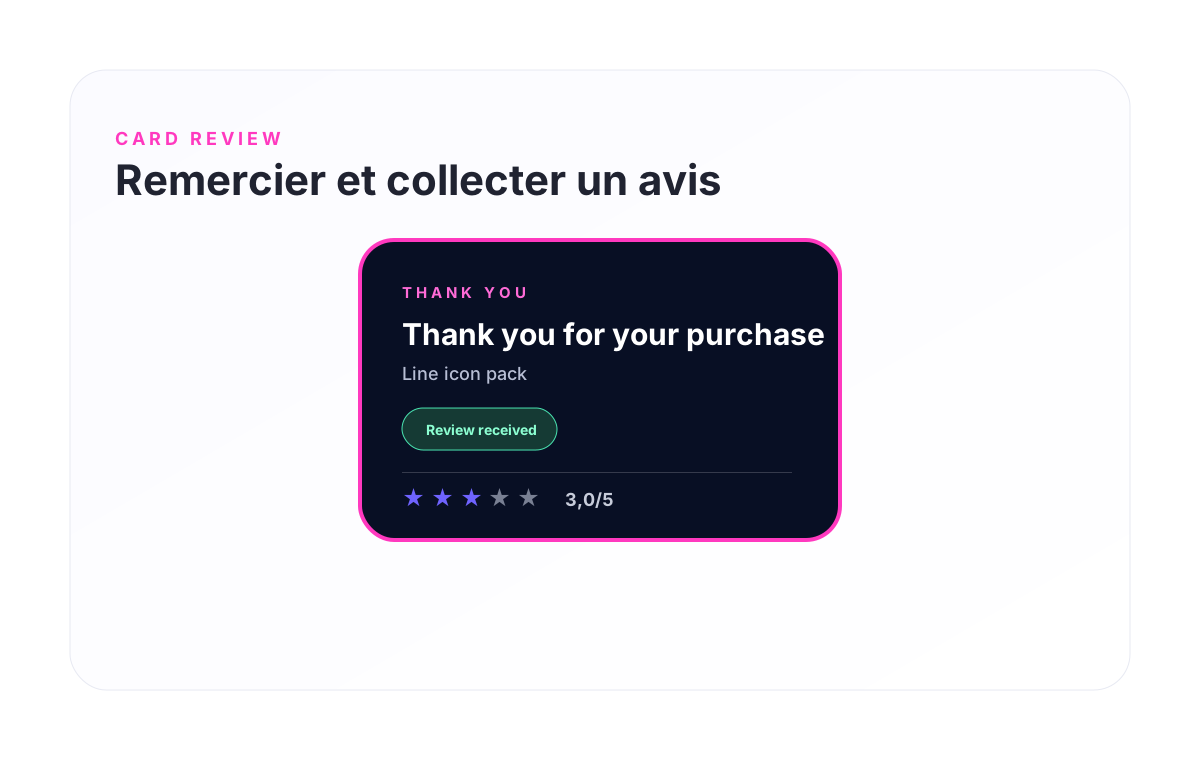
The review request card is the visual block shown inside the inbox to thank the buyer and invite them to leave feedback. It replaces a raw review request message with a more professional and engaging layout.
What the card should communicate
- Thank the buyer for the purchase.
- Remind them which product or service is concerned.
- Explain why their review matters.
- Provide one clear action.
Good wording example
Design recommendation
Keep the card visually strong but compact. A clear border, a strong headline, readable text and a visible button are usually enough.
Buyer: leaving a review
When the buyer receives a review request, the goal is to make the action simple and quick. A complicated review form reduces completion rates.
Buyer journey
- The buyer opens the conversation.
- They see the review request card.
- They click the review action.
- They write a short comment.
- They select a rating.
- They submit the review.
Rating behavior
- Selected stars should use the active accent color.
- Unselected stars should remain greyed out.
- The text value should match the visual rating.
Buyer: editing a published review
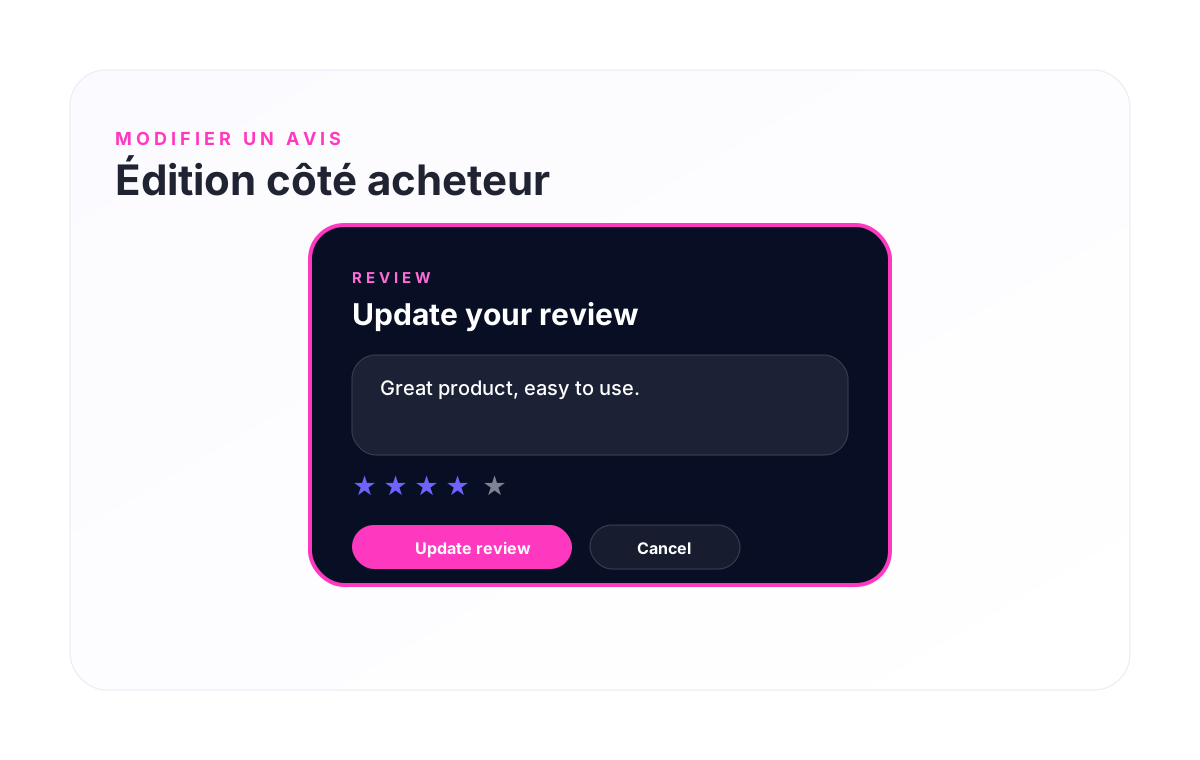
In many marketplaces, buyers may want to correct or improve a review after publication. Voxel Hub can make this experience available from the same conversation.
Expected behavior
- The buyer clicks Review published or Edit review.
- The existing review form opens.
- The previous rating is preselected.
- The previous comment is prefilled.
- The buyer updates the content and saves.
Why this matters
Editing avoids duplicate reviews and gives buyers control over their feedback. It also helps sellers receive more accurate comments over time.
Seller: tracking review status
From the seller side, Voxel Hub helps make review follow-up visible inside the conversation. Sellers do not need to manually check separate review pages to understand the customer status.
Possible states
- Review request available: the seller can ask for a review.
- Review requested: the buyer has been asked for feedback.
- Review received: feedback has been submitted.
- Review published: the review is visible and can be summarized.
Recommended seller behavior
Do not overuse manual review requests. A good review request should feel timely and relevant, not pushy.
Conversation automations
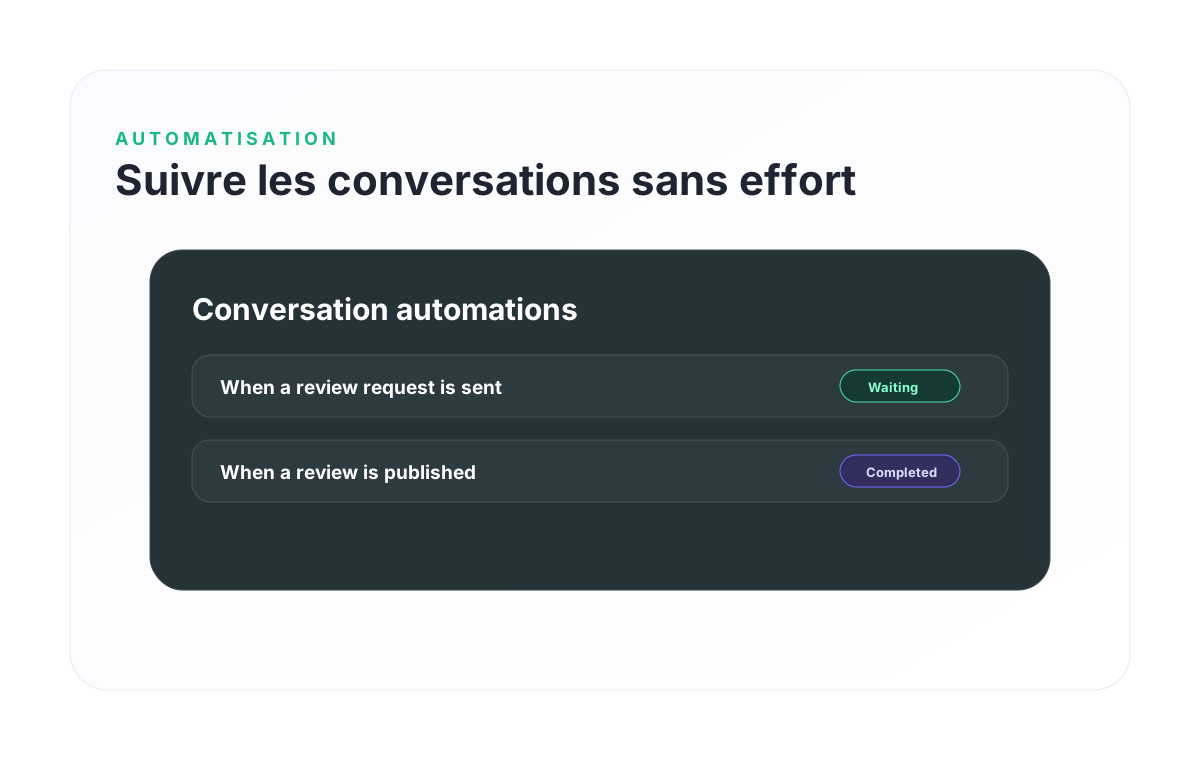
Conversation automations help administrators keep the inbox organized without relying on sellers to manually update every conversation.
Available triggers
- When a follow-up is scheduled.
- When a review request is sent.
- When a review is published.
Available actions
- Auto-pin the conversation.
- Change the conversation status.
- Change the conversation priority.
Example workflow
- A review request is sent.
- The conversation automatically moves to Waiting.
- The buyer publishes a review.
- The conversation automatically moves to Completed.
This keeps the seller dashboard cleaner and makes follow-up easier.
Labels, statuses and priorities
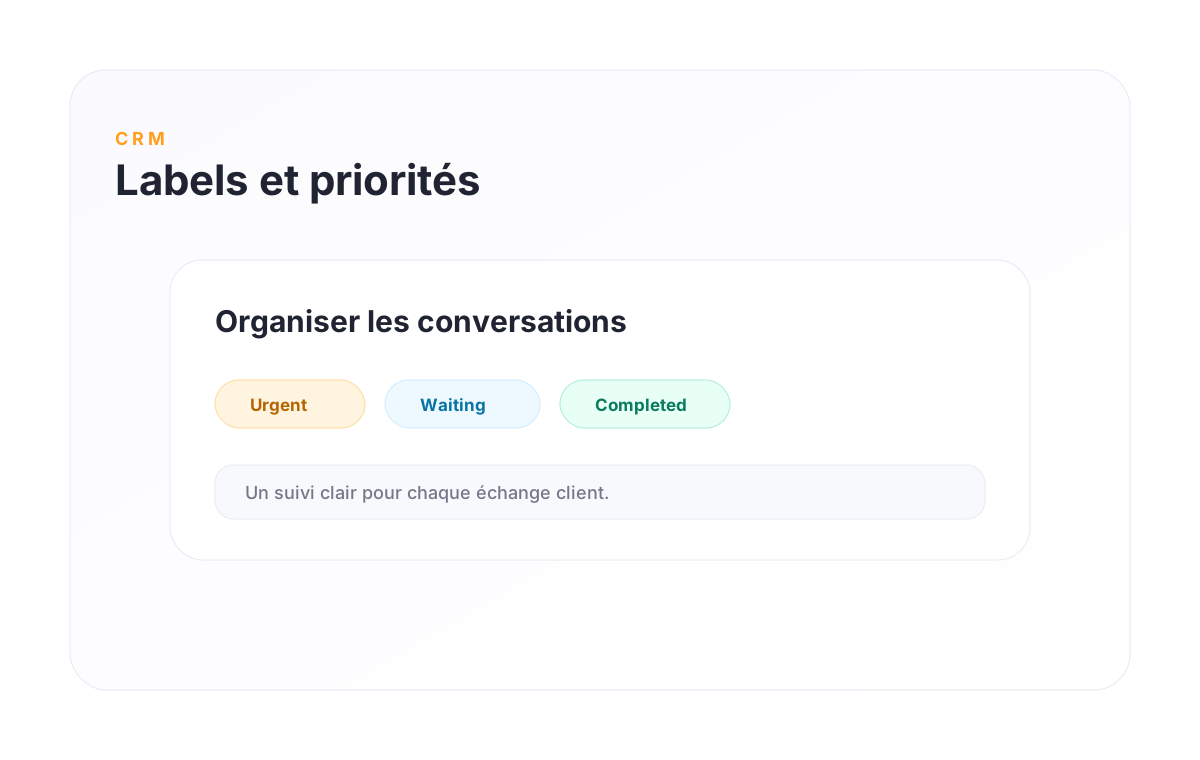
Labels, statuses and priorities turn the inbox into a lightweight CRM. They help sellers understand what needs attention and what can be considered completed.
Suggested statuses
- New: a new conversation or inquiry.
- Waiting: waiting for buyer feedback.
- Urgent: requires fast action.
- Completed: the conversation is finished.
- Review requested: feedback has been requested.
- Review published: the buyer has published a review.
Best practice
Keep your status list short. Too many statuses make the CRM harder to use and reduce seller adoption.
Customizing the documentation and card styles
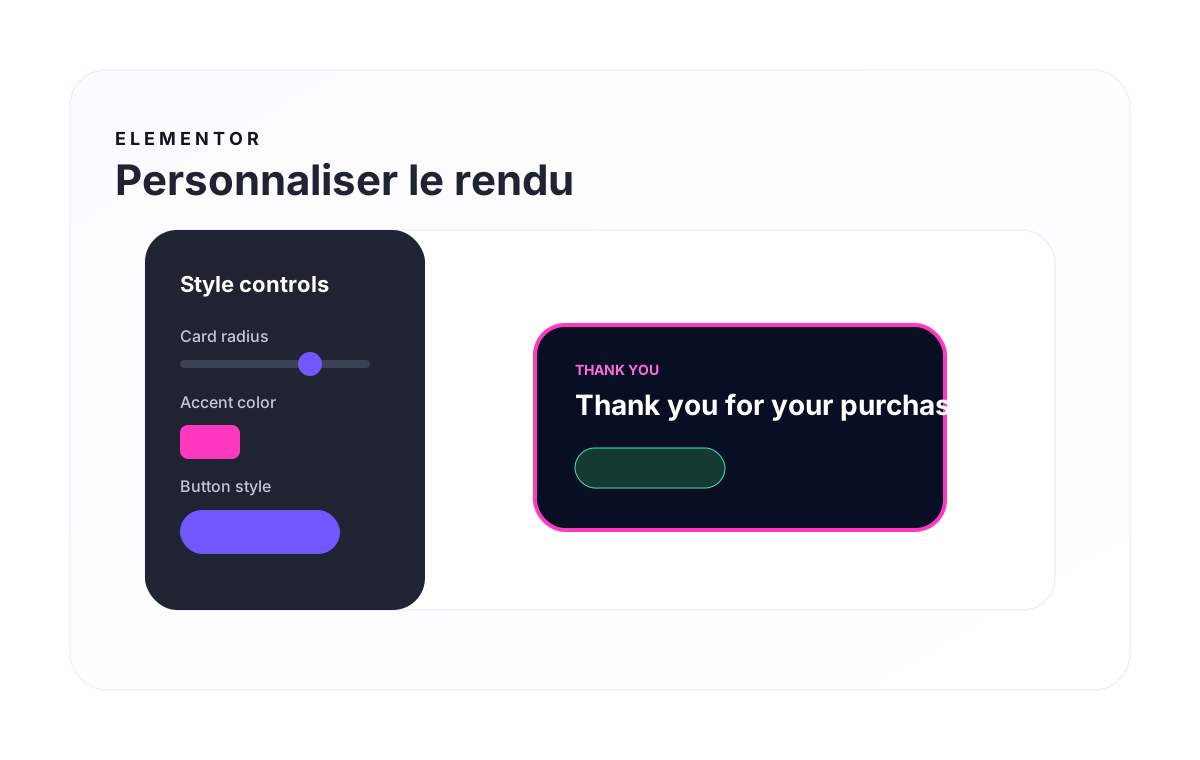
The documentation plugin includes an Elementor widget so you can edit the documentation directly inside Elementor instead of modifying code.
Editable documentation fields
- Documentation title and subtitle.
- Hero text and image.
- Article categories.
- Article titles and descriptions.
- Article images or screenshots.
- Detailed article content.
How to edit
- Edit the documentation page with Elementor.
- Add or select the Voxel Hub Docs widget.
- Open the content settings.
- Edit the article repeater.
- Upload your own screenshots.
- Publish the page.
Mobile experience guidelines
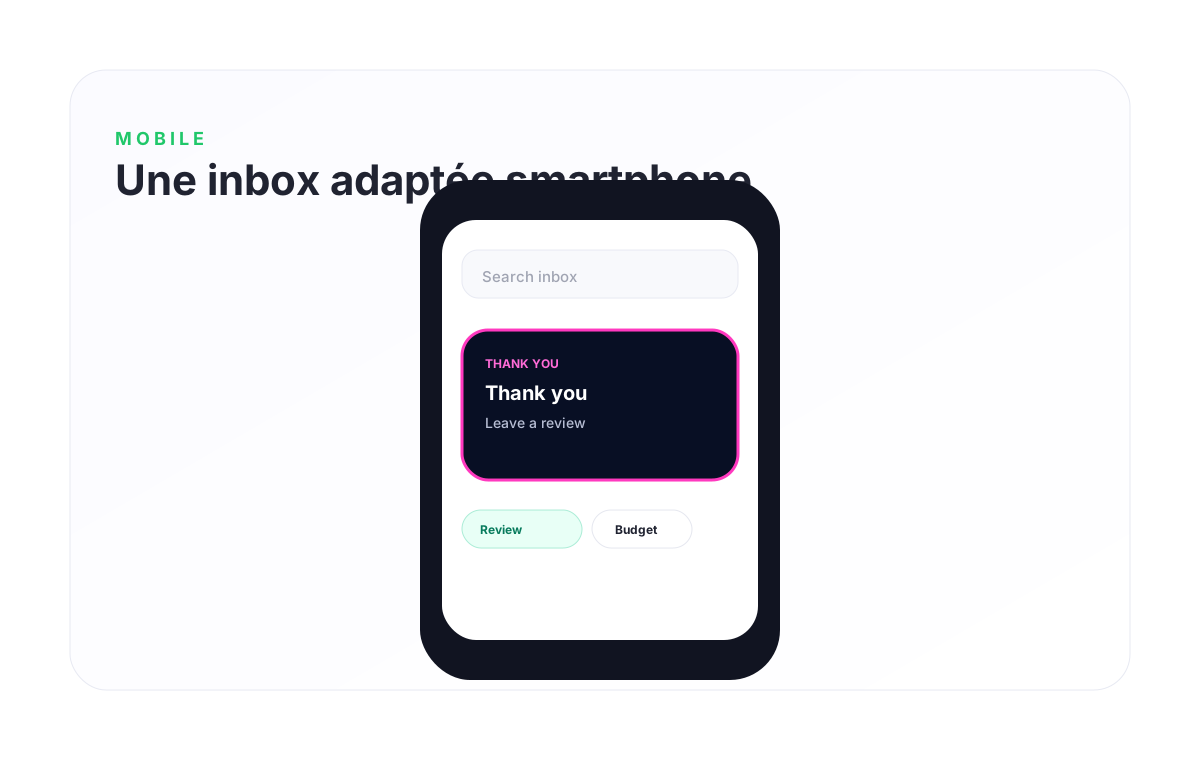
Many users will interact with marketplace messages from their phone. Mobile usability is therefore critical, especially for review requests and quick replies.
Mobile checklist
- The review card should fit inside the screen width.
- Buttons should be large enough to tap but not oversized.
- Stars should be visually clear.
- The message input should remain accessible.
- Quick replies should not push the message field too far down.
Testing advice
Always test on a real phone with a buyer account and a seller account. Elementor responsive preview is useful, but it does not always reproduce real browser behavior.
Use case: digital product marketplace
A digital product marketplace often needs fast support and strong social proof. Buyers want quick answers before purchasing, and sellers need reviews to build trust.
Recommended configuration
- Create quick replies for compatibility questions.
- Create quick replies for license and installation questions.
- Enable review requests shortly after purchase.
- Display the published review summary in the conversation.
- Use automation to mark reviewed conversations as completed.
Example journey
- A buyer asks if a template is compatible with their setup.
- The seller replies using a quick reply.
- The buyer purchases the product.
- Voxel Hub requests a review after purchase.
- The review appears in the conversation summary.
Use case: service marketplace
For service marketplaces, the most common friction is collecting enough information before giving a quote. Quick replies help vendors ask the right questions quickly.
Recommended quick replies
- Ask for desired date.
- Ask for budget.
- Ask for location or service area.
- Confirm availability.
- Thank the customer after completion.
Recommended automation
When a follow-up is scheduled, auto-pin the conversation. When a review is published, mark the conversation as completed.
Use case: rental marketplace
Rental marketplaces rely heavily on date availability, pickup details, return conditions and trust between users. Voxel Hub helps structure these exchanges.
Useful quick replies
- Ask for rental start and end date.
- Confirm item availability.
- Share pickup instructions.
- Explain deposit or return conditions.
- Request feedback after the rental is completed.
Review workflow
After the rental is completed, the platform can ask the renter to leave a review. This helps future users evaluate reliability and quality.
Importing and exporting settings
Import / Export is useful when working with staging sites, client websites or multiple marketplace projects.
When to export
- Before installing a major update.
- Before changing automation rules.
- Before moving from staging to production.
- Before testing new settings.
Recommended workflow
- Export your current configuration.
- Apply your changes.
- Test the frontend inbox.
- Keep the export file as a backup.
Troubleshooting checklist
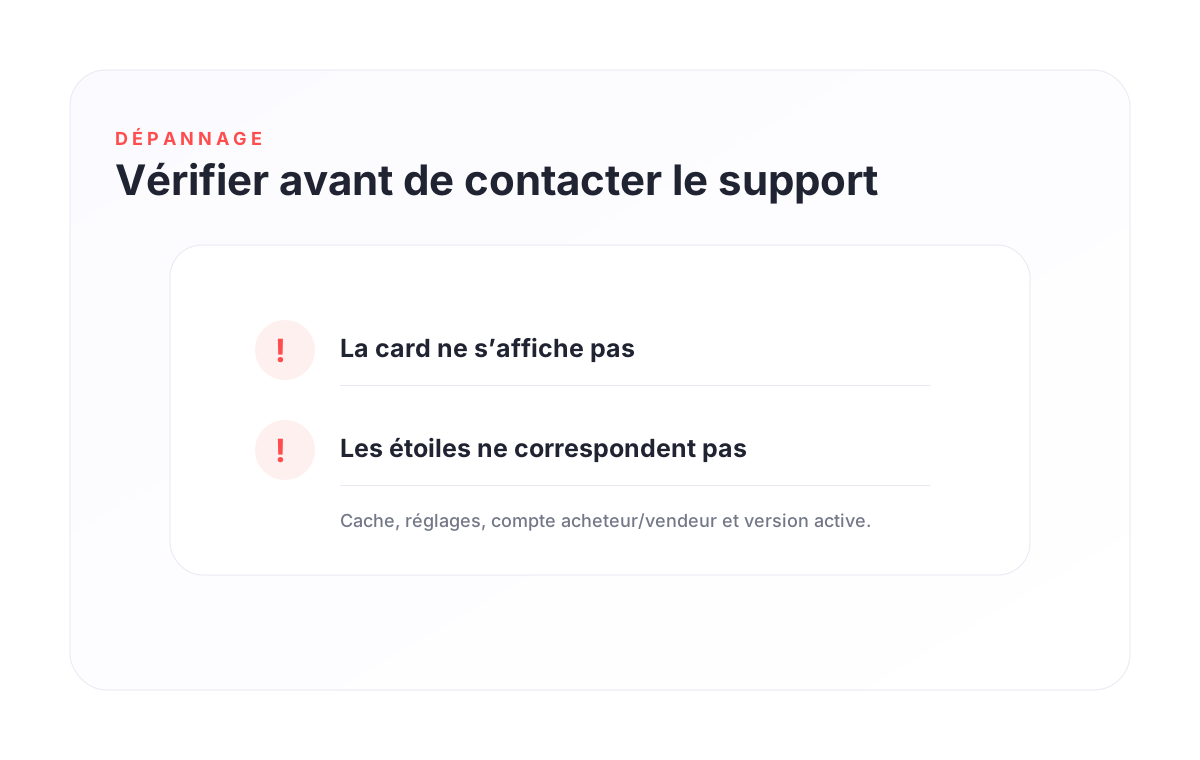
A quick reply does not appear
- Check that the label is not empty.
- Check that the message is not empty.
- Save settings again.
- Clear cache and reload the inbox.
The review card does not appear
- Check that the buyer has an eligible order.
- Check that review requests are enabled.
- Check that the seller is linked to the product or listing.
- Check whether a review already exists.
The stars do not match the rating
- Confirm that the stored rating is between 1 and 5.
- Clear cache.
- Check the latest plugin version is active.
Mobile layout looks wrong
- Reduce card width or padding in Elementor.
- Test on a real phone.
- Check whether your theme or custom CSS overrides inbox styles.
